
Linux commands for beginners: the 20% of commands you'll use 80% of the time (with a real-world example)
Quick answer
The most used Linux commands for beginners are a small set: pwd, cd and ls to move around the file system, cat and grep to read and filter files, cp to make copies, wc to count lines, find to locate files, diff to compare them, curl to test if a service responds, vim to edit a file and chmod to change file permissions. You chain them with a pipe (|) and save output with >. With these 13 commands you can already troubleshoot a real application on a Linux server.
Video chapters (16)
- 0:00 Intro
- 0:25 How to follow along
- 0:49 Set up a Linux environment
- 2:24 Command 1: uname
- 3:53 Command 2: pwd
- 4:13 Command 3: cd
- 4:49 Command 4: ls
- 5:48 Command 5: cat
- 6:21 Command 6: grep
- 8:25 Command 7: cp
- 10:11 Command 8: wc
- 11:50 Command 9: find
- 15:29 Command 10: diff
- 16:44 Command 11: curl
- 18:13 Command 12: vim
- 21:00 Command 13: chmod
Key takeaways
- pwd shows where you are, cd moves you to another directory and ls lists what is inside it; ls -l adds size and permissions.
- cat prints a file and grep filters lines that contain a word; put a phrase with spaces in quotes.
- A pipe (|) sends one command's output into the next command; > writes output into a file and overwrites it, >> appends.
- find / -name "*.conf" searches the whole file system by name; add 2>/dev/null to hide permission errors.
- diff shows exactly which lines differ between two files, and curl lets you check from the terminal whether a service answers on a port.
- In vim, press i to edit, Esc to stop editing, :wq to save and quit and :q! to quit without saving.
- chmod sets permissions with numbers: read 4, write 2, execute 1, so 600 means read and write for the owner only.
In this guide I show you the 13 Linux commands you will use most of the time, not as a dry list but by solving a realistic problem: an application on a Linux server stopped working, and we use the terminal to find out why and fix it. It’s written for complete beginners and career changers, so I explain every term the first time it comes up, and you can follow along on your own laptop.
How do you practice Linux commands on Windows or Mac?
The easiest way to get a real Linux environment on Windows or Mac is to run a Linux container with Docker. You install Docker Desktop, run one command, and you are inside a Linux terminal. You don’t need any Docker knowledge for this.
A quick word on terms first. The terminal is the black window where you type text commands instead of clicking. The program inside it that reads your commands is called the shell (on Linux usually Bash). A container is a small, isolated Linux environment running on your laptop, so you can experiment without breaking anything.
- Download and install Docker Desktop for Windows or Mac and start it.
- Open your terminal (PowerShell or Terminal on Windows, the Terminal app on Mac) and run:
# Download a Linux (Ubuntu) image and start an interactive shell inside it
docker run -it --rm ubuntu bash
The -it flag gives you an interactive terminal, and --rm deletes the container when you leave, so you always start fresh. In the video I use my own image that already contains all the demo files: docker run -it techworldwithnana/youtube:linux-tutorial (on Docker Hub). If you use the plain ubuntu image instead, paste this setup once to create the same “broken application” we’ll troubleshoot:
# Install the two tools the plain Ubuntu image doesn't include
apt update && apt install -y vim curl

# Create the demo application logs and config
mkdir -p /var/log/application /etc/application
cat > /var/log/application/error.log <<'EOF'
2025-04-08 09:58:01 INFO  application starting on port 8080
2025-04-08 09:58:02 ERROR database: connection refused (host=localhost port=5433)
2025-04-08 09:58:07 ERROR database: connection refused (host=localhost port=5433)
2025-04-08 09:58:12 ERROR database: connection refused (host=localhost port=5433)
2025-04-08 09:58:13 ERROR cache: redis timeout after 2000ms
2025-04-08 09:58:17 ERROR database: connection pool exhausted, giving up
2025-04-08 09:58:17 FATAL application shutting down
EOF
printf '2025-04-08 09:58:01 starting application v2.3.1\n2025-04-08 09:58:01 loading config from /etc/application/db.conf\n2025-04-08 09:58:17 application stopped with exit code 1\n' > /var/log/application/app.log
touch /var/log/application/access.log
printf 'host=localhost\nport=5433\nname=appdb\nuser=app\n' > /etc/application/db.conf
printf 'host=localhost\nport=5432\nname=appdb\nuser=app\n' > /etc/application/db.conf.backup
chmod 444 /etc/application/db.conf
cd ~ && clear
Don’t worry about understanding this setup block yet. By the end of the guide you’ll recognize most of it.
Command 1: uname — check which operating system you’re on
Once you’re inside the container, uname prints the name of the operating system you are currently using. It’s a quick way to confirm that you really are inside Linux and not in your laptop’s own terminal.
# Print the operating system name
unameLinuxThe name stands for “Unix name”. Unix is an older operating system from the 1970s, and Linux was designed to work like it, which is why so many commands are the same on Linux and macOS. Add -a to see all details, including the kernel version:
# Print all system information (kernel version, architecture and more)
uname -a
How do you navigate the Linux file system? (pwd, cd, ls)
You navigate with three commands: pwd shows where you are, cd moves you to another folder, and ls lists what’s inside a folder. Folders are called directories in Linux.
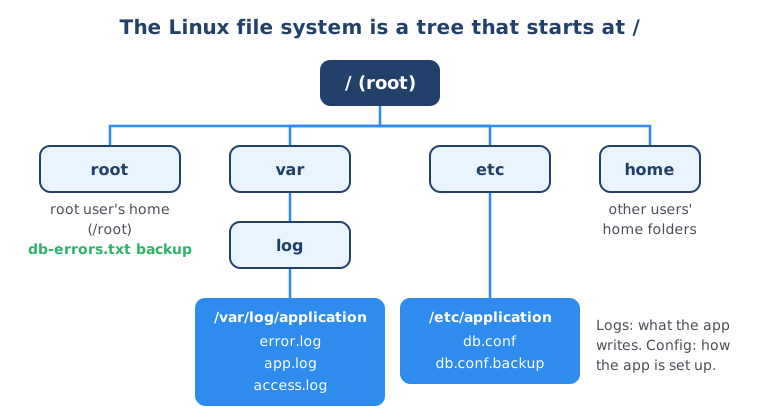
Here is our scenario. Imagine you are a junior engineer debugging your first production issue. An application is not accessible anymore, and you are logged in to the application server. The first thing you want is the application’s logs: the text files where the application writes what it’s doing and which errors happen.
Command 2: pwd — where am I?
pwd stands for print working directory. It shows the full path of the directory you are currently in.
# Show the directory you are currently in
pwd/root/root is the home directory of the root user, the administrator account that has full control of the system. It’s not where our application lives, so we need to move.
Command 3: cd — change directory
cd means change directory. You give it the path you want to go to. Our application writes its logs to /var/log/application:
# Move into the application's log directory
cd /var/log/application
pwd/var/log/applicationA path that starts with / is an absolute path: it starts from the very top of the file system. A few shortcuts you’ll use all the time: cd .. goes one level up, cd ~ (or just cd) takes you back to your home directory, and cd - jumps back to the previous directory.
Command 4: ls — list files
ls lists the files and directories in the current location.
# List the files in the current directory
ls
access.log app.log error.logWe have three files. To see more detail, such as the size of each file (is one empty? is the error log huge?) and its permissions (am I allowed to read it?), add the -l flag for the “long” format. A flag or option is an extra parameter that changes how a command behaves.
# List files with permissions, owner, size and modification date
ls -l
total 8
-rw-r--r-- 1 root root 0 Apr 8 10:20 access.log
-rw-r--r-- 1 root root 170 Apr 8 10:20 app.log
-rw-r--r-- 1 root root 491 Apr 8 10:20 error.logThe number before the date is the size in bytes. access.log is empty, but error.log has content, so that’s where we look next. Two more useful variants: ls -a also shows hidden files (names starting with a dot), and ls -lh shows sizes in readable units like 4.0K.
How do you read and search a file in Linux? (cat, grep)
You print a file with cat and filter it with grep, which only shows the lines that contain a word or phrase. Combined with a pipe, these two commands are how you read logs every day.
Command 5: cat — print a file
# Print the whole content of the error log
cat error.log
2025-04-08 09:58:01 INFO application starting on port 8080
2025-04-08 09:58:02 ERROR database: connection refused (host=localhost port=5433)
2025-04-08 09:58:07 ERROR database: connection refused (host=localhost port=5433)
2025-04-08 09:58:12 ERROR database: connection refused (host=localhost port=5433)
2025-04-08 09:58:13 ERROR cache: redis timeout after 2000ms
2025-04-08 09:58:17 ERROR database: connection pool exhausted, giving up
2025-04-08 09:58:17 FATAL application shutting downcat is short for concatenate, a fancy word for putting pieces of text together. Its most common use is simply printing a file to the screen. For very long files, less error.log lets you scroll (press q to quit) and tail -n 20 error.log shows only the last 20 lines.
Command 6: grep — filter lines, and the pipe
Real error logs can have thousands of lines. Let’s say we only want the lines related to the database. For that we chain two commands with a pipe, the | character: whatever the left command outputs becomes the input of the right command.
# Send the file content into grep and keep only lines containing "database"
cat error.log | grep database
2025-04-08 09:58:02 ERROR database: connection refused (host=localhost port=5433)
2025-04-08 09:58:07 ERROR database: connection refused (host=localhost port=5433)
2025-04-08 09:58:12 ERROR database: connection refused (host=localhost port=5433)
2025-04-08 09:58:17 ERROR database: connection pool exhausted, giving upIn most terminals the matching word is highlighted. grep can also read the file directly, grep database error.log, which gives the same result. Good to know: grep is case-sensitive, so add -i if you want Database and database to both match.
Before going further, it’s a good idea to save these lines for later reference. Instead of printing them in the terminal, we redirect the output into a new file with >:
# Write the filtered lines into a new file instead of the screen
cat error.log | grep database > database-errors.txt
ls -l
total 12
-rw-r--r-- 1 root root 0 Apr 8 10:20 access.log
-rw-r--r-- 1 root root 170 Apr 8 10:20 app.log
-rw-r--r-- 1 root root 319 Apr 8 10:21 database-errors.txt
-rw-r--r-- 1 root root 491 Apr 8 10:20 error.logThe new file exists and isn’t empty, and cat database-errors.txt confirms the content. Be careful: > overwrites a file that already exists. Use >> to add to the end instead.
| Symbol | What it does | Example |
|---|---|---|
| (pipe) | Sends output of one command into the next command | cat error.log | grep database |
> | Writes output to a file, replacing its content | grep database error.log > db.txt |
>> | Appends output to the end of a file | grep cache error.log >> db.txt |
How do you copy files and count lines in Linux? (cp, wc)
You copy a file with cp source destination and count lines with wc -l. Combined with grep, wc -l tells you how often something appears in a log.
Command 7: cp — copy a file
cp copies a file: you give it the file you want to copy and where the copy should go. If you add a full path, the copy is created in that location, under the new name you give it.
What if this log folder gets cleared on the next restart or deployment? I want a backup in the root user’s home directory, and with a shorter name:
# Copy the file to /root and call the copy db-errors.txt
cp database-errors.txt /root/db-errors.txt

# List /root without moving there
ls /rootdb-errors.txtNotice that I didn’t have to cd anywhere. Commands like ls, cat and cp accept a full path, so cat /root/db-errors.txt works from any directory. To copy a whole directory, use cp -r, and to move or rename a file instead of copying it, use mv.
Command 8: wc — count lines
wc stands for word count, and with -l it counts lines. Piped after grep, it tells you how many times something happened.
In our log I see “connection refused” errors. Imagine the application retried the connection a hundred times. How many attempts were there before it crashed? First filter only those lines. Because the phrase has a space in it, put it in quotes so grep searches for the whole phrase:
# Show only the lines containing the exact phrase
grep "connection refused" database-errors.txt
2025-04-08 09:58:02 ERROR database: connection refused (host=localhost port=5433)
2025-04-08 09:58:07 ERROR database: connection refused (host=localhost port=5433)
2025-04-08 09:58:12 ERROR database: connection refused (host=localhost port=5433)Then pipe the result into wc -l:
# Count how many lines contain "connection refused"
grep "connection refused" database-errors.txt | wc -l3(grep -c "connection refused" database-errors.txt does the same in one command.) Now we have a diagnosis: the application crashes because it can’t connect to the database on port 5433. A port is a numbered door on a machine that a specific program listens on. That number looks suspicious, because the default port of a PostgreSQL database is 5432. So who configured 5433?
Free download
Learning Linux? See what comes next.
The Linux command line is one building block of IT, next to networking, Git, programming and the cloud. The roadmap shows you which topics to learn in which order.
How do you find and compare files in Linux? (find, diff)
You search for files with find, followed by where to search and what to look for, for example find / -name "*.conf". Here / means “search the entire file system” and "*.conf" matches every file name that ends in .conf. To see what differs between two files, use diff file1 file2.
Command 9: find — search the whole file system
We knew where the logs were, but someone else set up the database configuration, and we don’t know where it lives. We only know that config files usually end in .conf. The name could be postgres.conf, db.conf or database.conf, so we use the * wildcard, which means “any characters”:
# Look in the current directory (.) only: nothing here
find . -name "*.conf"

# Look in the whole file system (/), hiding "Permission denied" noise
find / -name "*.conf" 2>/dev/null
The / at the start of a path is the root of the file system. Linux organizes everything as a tree, and every file and directory branches off from /. The 2>/dev/null part sends error messages to a “black hole” so they don’t clutter your output. This returns many config files, so let’s filter that list with our friend grep:
# Find all .conf files and keep only those with "db" in the path
find / -name "*.conf" 2>/dev/null | grep db/etc/application/db.confFound it in /etc/application. Maybe there are other versions with an extra ending, so add another * after conf:
# Also match names that continue after .conf, like .conf.backup
find / -name "*.conf*" 2>/dev/null | grep db
/etc/application/db.conf
/etc/application/db.conf.backupA backup file. That looks interesting. In the video I call "*.conf" a regular expression; strictly speaking find -name uses a simpler wildcard pattern (also called a glob), where * means any characters. Always put it in quotes so the shell doesn’t expand it before find sees it.
Command 10: diff — what changed?
diff compares two files line by line and prints only the lines that are different. It’s the fastest way to see what someone changed in a configuration. Let’s go to that directory. As you’ve seen, we don’t have to, but it means we can type short file names instead of full paths:
cd /etc/application
ls
db.conf db.conf.backupTip: you don’t have to type the whole name. Type db. and press the Tab key, and the shell autocompletes it for you.
# Compare the current config with the backup
diff db.conf db.conf.backup
2c2
< port=5433
---
> port=54322c2 means “line 2 was changed”. Lines starting with < come from the first file, lines with > from the second. So the backup had the correct port 5432, and someone changed it to 5433 in the live config. That’s our bug.
How do you check if a service is reachable? (curl)
curl is a command-line client that sends requests to a server, like a browser does, but from the terminal. You use it to check whether a website, an API or a service answers at a specific address and port.
Command 11: curl — is the database running on 5432?
Before fixing the config, let’s verify that the database actually runs on port 5432. localhost means “this same machine”:
# Ask for only the response headers (-I) from whatever runs on port 5432
curl -I http://localhost:5432
The -I option asks only for the headers, the short metadata at the start of a response, instead of downloading the whole page. In the video my demo image answers on that port and shows it’s PostgreSQL. A note for real servers: PostgreSQL doesn’t speak HTTP, so with a real database you will typically see curl: (52) Empty reply from server. That still tells you something is listening. If nothing listens on the port, you get curl: (7) Failed to connect to localhost port 5432 instead. For a proper PostgreSQL check, use its own tool pg_isready -h localhost -p 5432.
For anything that does speak HTTP, curl -I is perfect:
# Check a website's response headers
curl -I https://example.com
HTTP/2 200
content-type: text/html
...200 means the request succeeded. Networking basics like ports, localhost and HTTP are explained in my networking concepts guide.
How do you edit a file and change permissions in Linux? (vim, chmod)
You edit files in the terminal with a text editor such as vim: press i to start typing, Esc to stop, then :wq to save and quit or :q! to quit without saving. If a file is read-only, you first give yourself write permission with chmod.
Command 12: vim — try to fix the config
# Open the config in the vim editor
vim db.conf
Vim has two main modes: normal mode, where keys move the cursor and run commands, and insert mode, where you actually type text. Press i to go into insert mode. But in our case, vim shows this at the bottom:
W10: Warning: Changing a readonly fileThe file is locked. Let’s leave without changing anything: press Esc, type :q! and press Enter. This is the famous “how do I exit vim” moment, and now you know the answer.
How Linux file permissions work
Every file has three sets of permissions: for the owner (user), the group, and everyone else. Each set says whether that person can read (r), write (w) or execute (x) the file. chmod changes these permissions.
Command 13: chmod — unlock the file, fix it, lock it again
ls -l-r--r--r-- 1 root root 45 Apr 8 10:20 db.conf
-rw-r--r-- 1 root root 45 Apr 8 10:20 db.conf.backup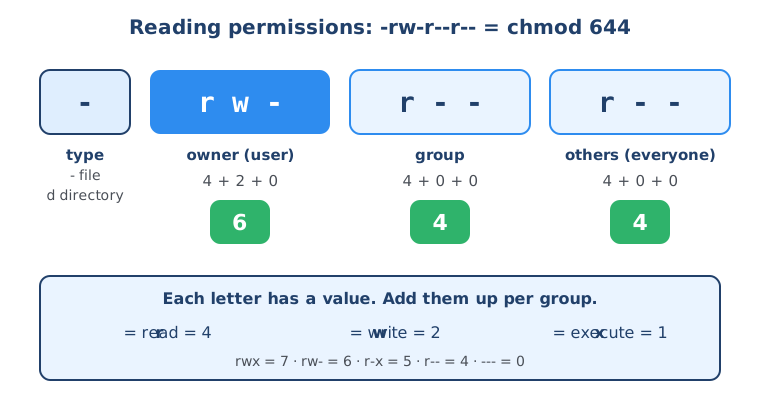
The first character is - for a file or d for a directory. Then come three groups of three: owner, group, others. db.conf is r--r--r--: everyone can read it, nobody can write it. That’s deliberate in production, so nobody overwrites the configuration by accident.
chmod (change mode) sets all three groups at once with a three-digit number. Each digit is the sum of read 4, write 2 and execute 1:
| Number | Letters | Meaning |
|---|---|---|
000 | --------- | No permissions for anyone |
444 | r--r--r-- | Read-only for everyone |
600 | rw------- | Owner can read and write, nobody else can do anything |
644 | rw-r--r-- | Owner reads and writes, everyone else only reads (common default for files) |
755 | rwxr-xr-x | Owner can do everything, others can read and run it (typical for scripts) |
777 | rwxrwxrwx | Everyone can do everything (avoid this) |
Execute permission matters for programs and scripts, such as Bash scripts you want to run. We want the root user to read and write, and the rest can stay at zero:
# Owner: read + write, group: nothing, others: nothing
chmod 600 db.conf
ls -l db.conf
-rw------- 1 root root 45 Apr 8 10:20 db.confYou can also use letters instead of numbers: chmod u+w db.conf adds write permission for the owner (user) only. Now open the file again:
vim db.conf- Press
i. You now see-- INSERT --at the bottom. - Move with the arrow keys to
5433, delete the3and type2. - Press
Escto leave insert mode. - Type
:wqand press Enter to write (save) and quit.
Check your fix, then lock the file again:
# Confirm the port is now correct
cat db.conf

# Lock the config back to read-only for the owner
chmod 400 db.conf
host=localhost
port=5432
name=appdb
user=appWhen the application restarts, it connects to the database on the right port. Problem solved, entirely from the terminal. To leave the container and go back to your own laptop’s terminal, type:
exitIf you run uname now on a Mac, it prints Darwin, the name of the macOS core, which proves you’re back on your own machine.
In the IT Fundamentals Course you use these Linux and CLI basics to deploy a complete web application to a real cloud server.
Linux commands cheat sheet
Here are all the commands from this guide in one table.
| Command | What it does | Example |
|---|---|---|
uname | Shows the operating system name (-a for all details) | uname -a |
pwd | Prints the directory you are in | pwd |
cd | Changes directory (.. up, ~ home, - previous) | cd /var/log/application |
ls | Lists files (-l details, -a hidden files, -h readable sizes) | ls -l |
cat | Prints a file’s content | cat error.log |
grep | Shows lines that contain a word or phrase (-i ignore case, -c count) | grep "connection refused" error.log |
| | Pipes output of one command into the next | cat error.log | grep database |
> / >> | Writes output to a file (overwrite / append) | grep database error.log > db.txt |
cp | Copies a file (-r for directories) | cp db.txt /root/db-errors.txt |
wc | Counts lines (-l), words (-w) or bytes (-c) | grep error app.log | wc -l |
find | Searches for files by name | find / -name "*.conf" 2>/dev/null |
diff | Shows the lines that differ between two files | diff db.conf db.conf.backup |
curl | Sends a request to a server (-I headers only) | curl -I https://example.com |
vim | Edits a file (i insert, Esc, :wq save, :q! quit) | vim db.conf |
chmod | Changes file permissions (r=4, w=2, x=1) | chmod 600 db.conf |
exit | Leaves the shell or container | exit |
Summary
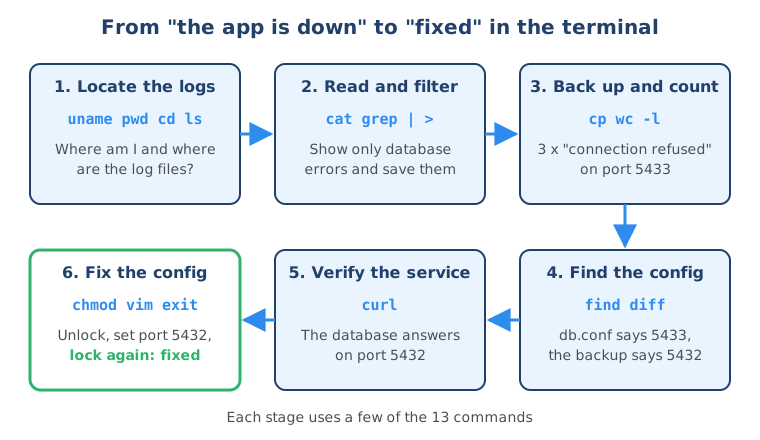
You don’t need hundreds of Linux commands to be productive. With these 13, plus the pipe and redirection, you can navigate a server, read and filter logs, back up files, find and compare configs, test whether a service answers, and fix a file with the right permissions. That’s exactly what we did to fix the broken application. To keep everything at hand while you practice, download the Linux commands cheat sheet.
Next, learn how computers talk to each other in networking concepts explained and proxy vs reverse proxy vs load balancer, and see how Linux commands run automatically in a pipeline in the GitHub Actions tutorial. For the bigger picture, read about the software development life cycle and IT fundamentals for beginners, or browse all IT fundamentals guides.
Frequently asked questions
What are the most used Linux commands?
The commands you use almost every day are pwd, cd and ls to navigate, cat and grep to read and search files, cp and mv to copy and move files, find to locate files, and chmod to change permissions. Add curl for testing network services, vim or nano for editing files, and the pipe (|) for chaining commands. These cover most everyday work on a Linux server.
How can I practice Linux commands on Windows or Mac?
The easiest way is to install Docker Desktop and start a Linux container with docker run -it --rm ubuntu bash, which gives you a real Linux shell in seconds. On Windows you can also use WSL (Windows Subsystem for Linux). macOS already has a Unix terminal where most of these commands work, although a few options differ from Linux.
What does the pipe symbol | do in Linux?
The pipe takes the output of the command on its left and passes it as input to the command on its right. For example, cat error.log | grep database prints only the lines of the file that contain the word database. You can chain several pipes, such as grep "connection refused" errors.txt | wc -l to count matching lines.
How do I exit vim?
Press Esc to leave insert mode, then type :q! and press Enter to quit without saving, or :wq to save your changes and quit. If vim says the file is read-only, either fix the permissions with chmod first or quit with :q! so you don't lose track of what you changed.
What does chmod 777 mean?
chmod 777 gives read, write and execute permission to everyone: the file owner, the group and all other users. Each digit is the sum of read (4), write (2) and execute (1) for one of those three. 777 is almost never a good idea on a real server; use the smallest permissions that work, such as 600 for a private config file or 755 for a script others need to run.
What is the difference between > and >> in Linux?
Both redirect a command's output into a file instead of the terminal. A single > creates the file or overwrites everything that was in it, while >> appends the output to the end of the existing file. Use >> when you want to keep adding to a log or backup file.
Is Linux hard to learn for beginners?
No. You don't need hundreds of commands to be productive; a core set of around a dozen commands covers most of what you do day to day. The fastest way to learn them is to practice on a real task, such as finding and fixing a broken configuration, instead of memorizing a list.